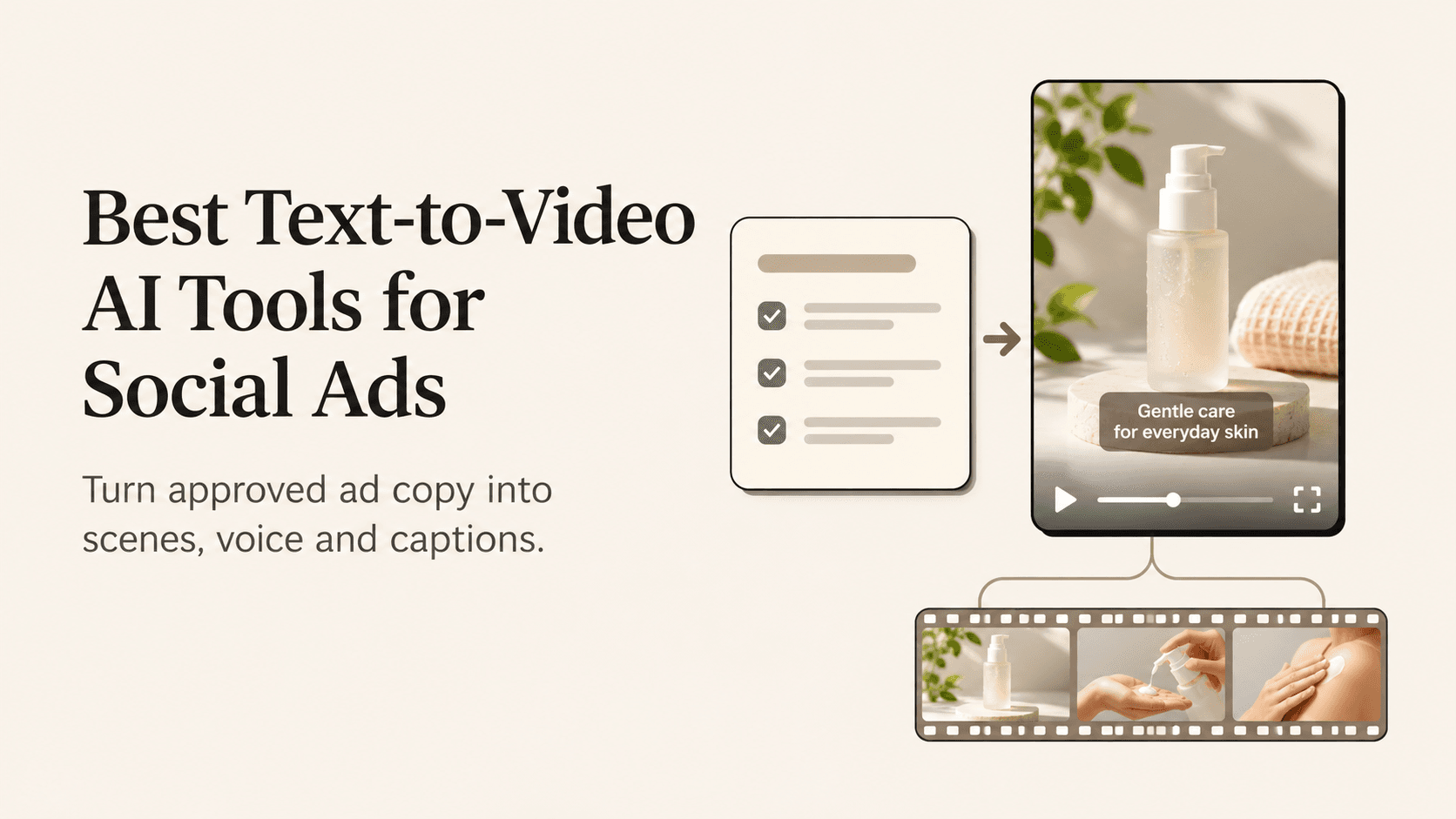
A social ad script tells you what the viewer should hear. The video still has to show the right thing at the right moment. If the script says a product folds flat, the viewer should see it fold. If it says the offer ends Sunday, the date needs to appear long enough to read. Text-to-video AI can speed up the first draft, but those details determine whether the draft is ready for review.
Invideo is a good fit if you want to turn a script into a full ad and still change the scenes before it goes live. HeyGen and Synthesia suit ads led by a presenter. Pictory can build a draft from stock footage, while VEED is useful when you expect to adjust captions and timing in your browser.
The comparison follows an approved script from its first visual draft through a change to the offer or opening. Product capabilities are based on official documentation.
What to Look for in Text-to-Video AI for Ads
Look for three things: the correct words, a visual that supports each claim, and an easy way to revise one scene. You can generate a polished draft quickly and still spend time replacing the wrong product shot or rebuilding captions after a line changes. Test the parts of the ad that must be exact before comparing styles or output speed.
Text-to-Video AI Tools for Social Ads at a Glance
|
Tool |
From script to screen |
Refining the version |
Best fit |
|---|---|---|---|
|
invideo |
Build visuals and narration from a script or brief. |
Refine scenes and captions and replace assets. |
Product ads with varied visuals and editable scenes. |
|
HeyGen |
Create a draft through Video Agent or build avatar-led delivery. |
Review narration, presenter choice, and visuals. |
Presenter-led offers and explainer ads. |
|
Synthesia |
Lay out script sections in presenter-led scenes. |
Revise voice, scene text, and templates. |
Repeatable product explainers. |
|
Pictory |
Match script lines with visuals and voiceover. |
Edit scenes and replace generic visual matches. |
Narrated videos built from stock or provided assets. |
|
VEED |
Turn a script into a draft with footage and narration. |
Refine captions and timing in the browser. |
Social teams that want a browser finish. |
1. invideo for Turning Ad Scripts Into Social Videos
Media and multitrack timeline in invideo Editor. The timeline supports adjusting clips, text and sound.
Start with your ad script or a short brief. In the text to video AI tool, explain who the ad is for, where it will run and what the viewer should see. If you’re advertising a folding desk lamp, ask for a shot of the lamp folded on a desk, a close-up of it opening and a final shot with the offer.
Invideo can create a draft with scenes, voiceover and music based on those directions. When you upload a script or brief, it can make the clips and put them in order on an editable timeline. Watch the draft against the script. If the voiceover says the lamp folds flat, the viewer should see the lamp fold at that point.
In invideo Editor, you can swap the generated hinge shot for a real product clip, trim the opening or adjust the text on the last frame before you export. Check names, prices and dates in both the voiceover and captions. If you’re testing two openings, keep the product demo and offer the same so you can see what changing the first scene does.
2. HeyGen for Presenter-Led Social Ads
HeyGen Video Agent suits a short ad in which a presenter explains an offer or introduces a product. A presenter can offer a consistent delivery style across a series. Give the presenter short spoken lines, then cut to real product footage when the message requires visual proof. Listen for brand names and confirm the exact wording of any claim before sharing the draft.
Check HeyGen’s plan terms for the route and volume you intend to produce. Compare how many presenter-led variations you can create and which changes require another generation. Choose HeyGen when the bulk of the ad relies on direct, clear delivery to camera.
3. Synthesia for Repeatable Presenter-Led Explainers
Synthesia Assistant can prepare a draft from a brief and supporting material. It fits a series that repeats a useful structure, such as introducing one product feature, showing it in action and closing with a clear next step. A familiar presenter and format can help the series feel connected while the subject changes.
Synthesia lists Assistant access on Starter, Pro, Business and Enterprise. It lists applying a brand kit through Assistant on Business and Enterprise. Those access details matter if someone needs consistent type, color and logo treatment across every draft. Choose it when presenter consistency and a reusable scene structure are central to the job.
4. Pictory for Stock-Supported Script Drafts
Pictory’s script-to-video tool maps written lines to scenes, visuals, voiceover and captions. It is useful when the team wants to review story and pacing while the final assets are still being prepared. Swap any stock shot that shows a different item, a generic screen or a process that does not match what the product actually does.
Pictory lists credits for a time-limited trial and branding on trial downloads. Confirm the current plan and export terms if the first deliverable needs to be clean enough for an external review. Choose it when stock visuals help the team map out a narrated spot and you expect to replace some scenes.
5. VEED for Browser-Based Caption and Timing Edits
VEED’s script-to-video tool gives a social editor a browser workflow for turning a script into a draft and refining the result. The practical advantage is doing final checks where you can trim a pause, correct captions and adjust the timing before delivery. This is useful when the voice and visuals are already close and the finishing pass is the main job.
Check VEED’s export and AI access before producing a batch. Choose it if the team expects to stay close to the edit and make a series of local adjustments in the browser.
How to Compare Script-to-Video Tools on a Real Revision
Give each tool the same script. Include one product name, one line that requires a specific visual, and an offer with a date or number. Decide which lines must be read word for word. Then compare the spoken delivery and captions against the approved copy. One draft may look better while another is closer to the wording the brand can publish.
Ask for one change after approving the rough cut: replace the end date, swap an image, or revise the first line. Check what else moves when you make that change. If replacing a voice line shifts the timing of later captions, preview the rest of the ad. If a new shot changes the look of the product, compare it side by side with the approved asset. Record how long the revision takes because that is work you will repeat.
Script-to-Video Example for a Product Launch Ad
Consider a short script for a folding desk lamp. The opening promises a clear desk. The second line explains that the lamp folds flat. The final line presents the launch offer. Give the tool the same reference for each scene: a wide shot of the desk, a close-up of the hinge and a clean product still for the end card. Review whether the generated sequence follows that logic before deciding whether you like the voice or style.
The hinge shot matters because it is the proof. If a first draft shows a different lamp folding in a different way, swap in the real clip. Save the offer text as an editable element and keep the approved product name in the script. When the date changes, revise the end card and check whether it is mentioned in narration or captions as well.
A presenter-led version might open with the problem and cut to the demo. A voiceover-led version can start directly on the product. Try both with the same message and ending. The choice depends on which version makes the feature easiest to understand at phone size.
How to Set Up an Ad Script for a Better First Draft
Write the script in two parts. On one side, put the words the viewer should hear. Beside each line, note what the viewer should see and which asset to use. Mark parts that must remain exact, including the product name, claim and offer. Leave room for a visual suggestion where the image is less important. This gives the tool a clear brief and gives the reviewer a way to check what it generated.
Agree in advance on what a good revision looks like. A new price should require a simple change to the end card, but also check whether the narrator or captions say the old price. If a changed voice line shifts the rest of the sequence, replay the whole ad. MarketersClique’s guide to client approvals is a useful reference for deciding who checks the product claims and who signs off before scheduling.
For vertical placements, hold space for application controls around captions and offer copy. TikTok’s ad creative guidance recommends creating in a 9:16 frame and keeping key elements inside the visible area. Preview in the platform where you will publish, especially when a generated layout places text near the bottom of the frame.
Key takeaways
-
Give every tool the same approved script and the same supporting product assets.
-
Check narration, captions and visuals against the approved claim before judging the style.
-
Test a single change to the offer or first scene to find out how much work revisions take.
Frequently asked questions
Will a generator preserve my script exactly?
Check the narration and captions against the approved copy. Some workflows treat text as a brief, and even a close draft can change the wording of a claim or the pronunciation of a name.
What should I upload with the script?
Provide product photos, screen recordings, logos and a clean end card if you have them. Give each asset a clear name and note which line should play with it.
How can I test different hooks?
Make a copy of the approved ad and change just the opening shot or first spoken line. Keep the product explanation and offer stable so you know which choice you are testing.
What if I have no product footage yet?
Start with approved stills and a simple draft if you only need to review the story. Plan to add an authentic visual before publication for any feature that needs to be demonstrated.
Conclusion
A useful text-to-video tool helps you show what the script promises, keep the approved wording and make the next change without rebuilding the whole ad. Invideo Editor fits when the quality of the finished piece depends on where clips, captions and audio land on an editable timeline. A presenter-led product may benefit more from a dedicated avatar workflow. A narrated concept can be ready for review with a simpler stock-supported draft.
Start with one short script, one authentic product asset and one real revision. Watch both versions at phone size and on mute. Then choose the workflow that preserves the message, keeps the offer accurate and gets the video through the approvals your team actually needs.